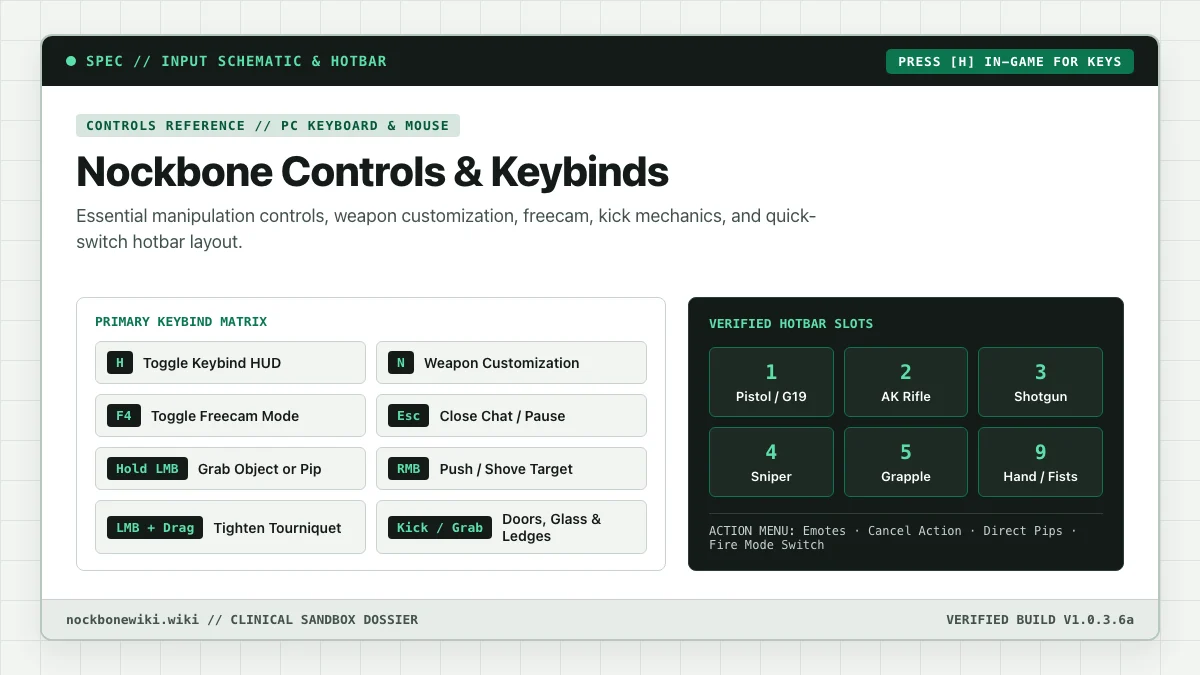
Because Nockbone simulates ragdoll grabbing, tourniquet tension, procedural melee swings, and zero-G movement inside one Unity sandbox, learning the exact Nockbone controls makes the difference between fumbling with physics and staging clean tests on Pips. Every input in this Nockbone controls guide is verified from official V1.0.3.6a gameplay HUD captures and Anemonei's devlogs on itch.io.
Verified Nockbone Controls & PC Keybinds Table
Whenever you forget an input mid-session, look for the KEYS indicator in the top-right corner of your screen and press H to open the live Nockbone controls overlay. Here are all confirmed PC bindings and core actions in V1.0.3.6a:
| Key / Input | Action | Notes / Patch Verified |
|---|---|---|
H |
Toggle Keybind Reference | Displays full HUD key list (KEYS top-right) |
Hold LMB |
Grab objects or Pips | Core physics manipulation and dragging |
RMB |
Push | Shove Pips, doors, or loose props |
LMB on tourniquet + Drag |
Tighten or loosen tourniquet | Verified from official HUD control prompt |
1 – 5, 9 |
Hotbar quick-switch | Official HUD slots: 1 Pistol, 2 AK, 3 Shotgun, 4 Sniper, 5 Grapple, 9 Hand/Fists |
N |
Open Weapon Customization | Added in v1.0.3.6 |
F4 |
Toggle Freecam | Added in v1.0.2 for cinematic camera angles |
Esc |
Close chat / Pause menu | Fixed in v1.0.3.6 so closing chat no longer triggers Pause |
If you are still setting up Nockbone on Windows, macOS, or Android, check our Download & Mobile Setup Guide first.
Nockbone Controls for Hotbar, Customization & Fire Modes
The bottom hotbar in Nockbone controls lets you swap rapidly between firearms, traversal tools, and bare hands (9). Official gameplay screenshots show a testing loadout mapped across 1 (Pistol / G19), 2 (AK), 3 (Shotgun), 4 (Sniper), 5 (Grapple), and 9 (Hand / Fists), though you can equip any of the 20+ spawn-menu firearms detailed in the Weapons, Constructs & Gear List.
Two combat additions in the v1.0.3.5–v1.0.3.6 updates expand PC Nockbone controls during gunfights:
- Weapon Customization (
N): Introduced in v1.0.3.6, pressingNopens the customization interface directly so you can configure compatible guns without respawning. - Fire Mode Switching: Added in v1.0.3.5, compatible rifles and automatic weapons can toggle between semi-auto and full-auto fire. Switching to semi-auto helps conserve control during long-range engagements on open maps like Tower or Frogger, while full-auto clears crowded rooms.
For melee combat, remember that v1.0.3 and v1.0.3.5 rebuilt melee Nockbone controls around Half-Sword-style dynamic handling, procedural cutting, and power chopping—including self-inflicted melee actions if you are careless. Swing deliberately rather than spamming clicks.
Physical Nockbone Controls: Kicking, Ledge Grabbing & Sitting
Beyond shooting, Nockbone controls emphasize direct physical interaction with both Pips and map geometry:
Kicking Doors, Glass, and Pips
Added in v1.0.3.5 and expanded in v1.0.3.6, the Kick action is one of your most versatile utility moves. You can kick Pips or rival players to stagger them back, kick doors open aggressively when breaching rooms in Facility or Prison, and shatter breakable glass (such as the real breakable glass added to the Backroads cabin).
All-Direction Ledge and Wall Grabbing
Falling off Tower's 50 meters of concrete and a crane or a Facility catwalk used to be almost always fatal if you were facing the wrong way. In v1.0.3.6, movement Nockbone controls upgraded ledge and wall grabbing so you can grab onto walls and ledges while falling in all directions, not only when facing straight forward. Pair this with the Grapple (shown in hotbar slot 5 in official HUD screenshots) when traversing vertical drops or navigating zero-G vacuum outside Lost in Space.
Sitting, Bunks, and Restraints
Since v1.0.3.6, players can sit on chairs, sofas, benches, and stools on every map—including Moving Train benches, which were fixed to allow sitting from all angles. On Lost in Space, you can also lie yourself or a Pip down inside ship bunks or place bodies onto ward beds and surgery tables that function as gurneys. Note that handcuffed players can no longer open doors as of v1.0.3.6, and hooded subjects now display a prompt to remove the hood.
Action Menu, Pip Commands & Emotes
The Action Menu centralizes non-weapon Nockbone controls so you do not have to memorize dozens of obscure hotkeys:
- Cancel Actions: Added in v1.0.3.5 so you can back out of an interaction cleanly.
- Directing Pips: Issue behavioral orders to spawned Pips—including the "attack everyone" command added in v1.0.3.6, which turns calm ragdolls into immediate free-for-all fighters.
- Emotes Tab: Added in v1.0.3.6 inside the Action Menu for multiplayer roleplay and testing clips.
Survival Tips, HUD Toggles & Admin Movement
Mastering these everyday Nockbone controls habits will keep you alive much longer in solo sandbox tests and multiplayer lobbies:
- Roll When on Fire: If a Molotov, flamethrower, or fire hazard ignites you, go prone and roll to extinguish flames—or sprint under working showers on Lost in Space, which put out fire and wash blood off.
- Watch Your Vitals HUD: Keep an eye on the bottom-left
VITALS · YOUpanel (live ECG waveform, status, and heart rate) and use the monitor-free X-ray whenever you take heavy impact. See our Pip Anatomy & Medical Guide to learn tourniquet dragging, morphine, and casts. - Customize Your HUD & Use Freecam: Settings allow you to disable any HUD element individually (v1.0.3.5), which pairs cleanly with
F4Freecam for capturing clean footage. - Know Multiplayer Flight Limits: Only server admins can toggle Admin Fly in multiplayer sessions (enforced since v1.0.2). Read the Multiplayer, LAN & Admin Guide for full host permissions and server Nockbone controls.
Frequently asked questions
How do I view all Nockbone controls inside the game?
Press H at any time during gameplay to toggle the built-in Nockbone controls and keybind reference, indicated by the KEYS label in the top-right corner of the HUD.
Which key opens weapon customization in Nockbone controls?
Press N in v1.0.3.6 or V1.0.3.6a to open the Weapon Customization menu.
How do you tighten or loosen a tourniquet on a Pip?
Using core Nockbone controls, click LMB directly on an applied tourniquet and drag your mouse to tighten or loosen its pressure.
Can I hide the HUD for screenshots or videos?
Yes. Since v1.0.3.5, Settings let you disable any individual HUD element, and you can press F4 to toggle Freecam.
Why did pressing Esc open the pause menu while closing chat?
That was an older UI bug fixed in v1.0.3.6—pressing Esc while chat is open now closes chat cleanly without also popping up the pause menu.
Keep reading
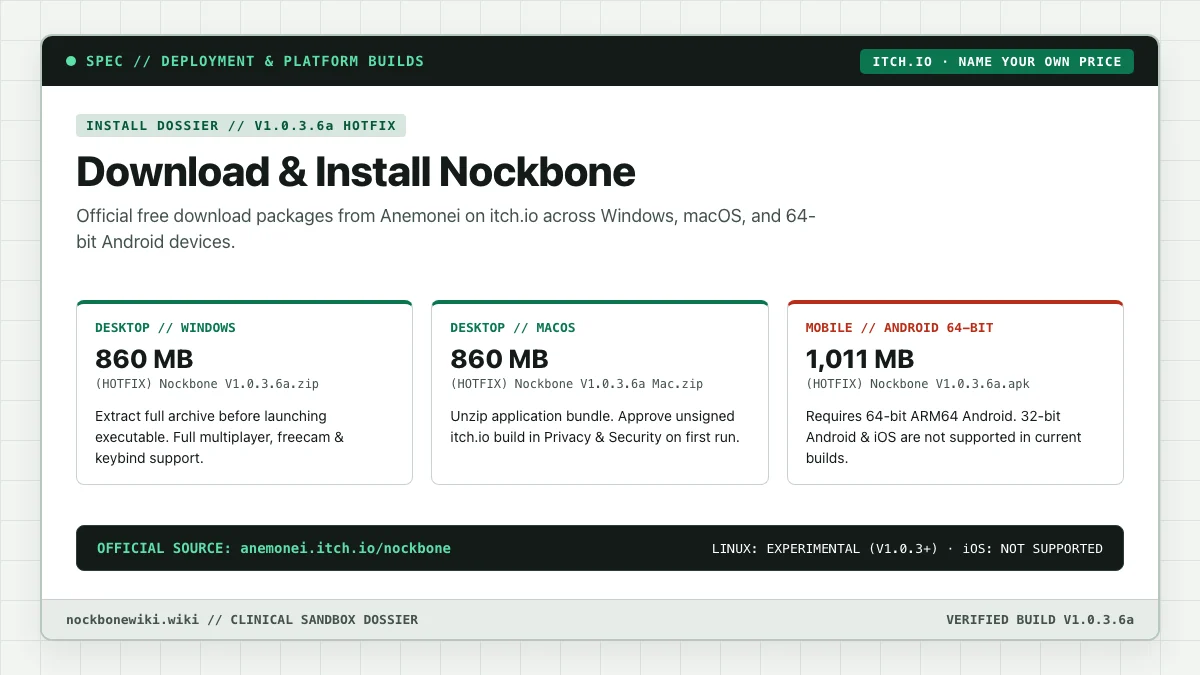
Nockbone Download Guide: PC, Mac & Android APK V1.0.3.6a
Official Nockbone V1.0.3.6a downloads for Windows, macOS, and 64-bit Android APK, plus Honor Pip and liquid FPS fixes.
Read more →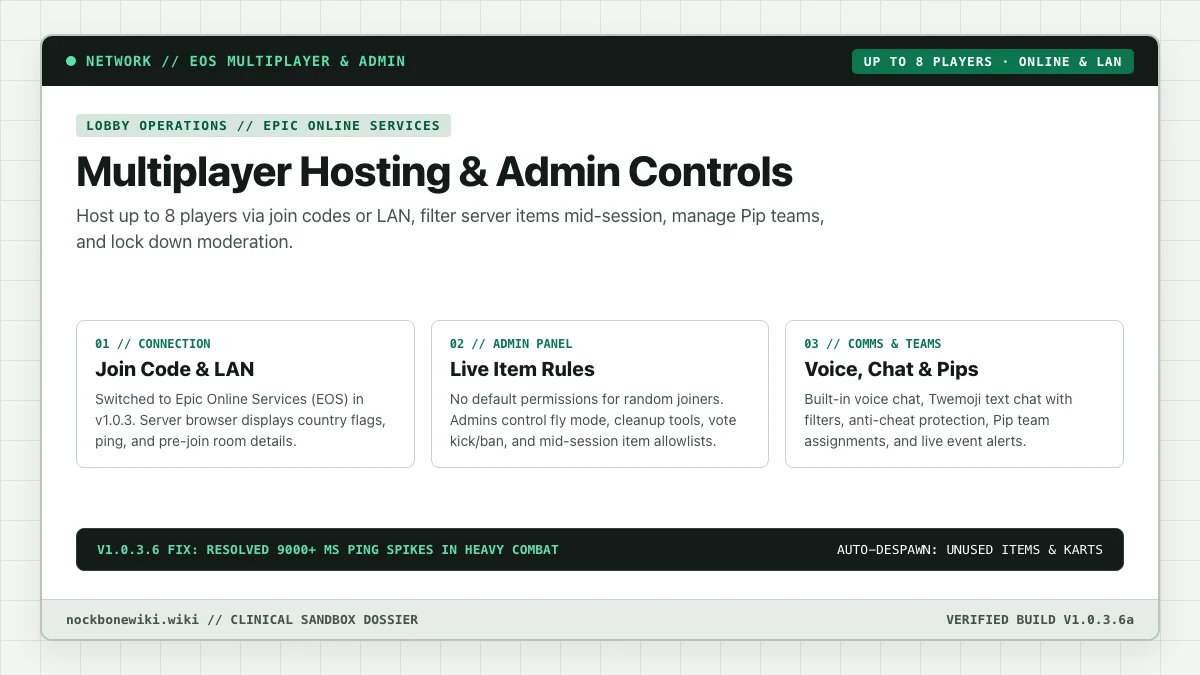
Nockbone Multiplayer Guide: LAN, Join Codes & Admin Tools
Host 8-player Nockbone multiplayer via EOS join codes or LAN with anti-cheat, Pip teams, item bans, and ping fixes.
Read more →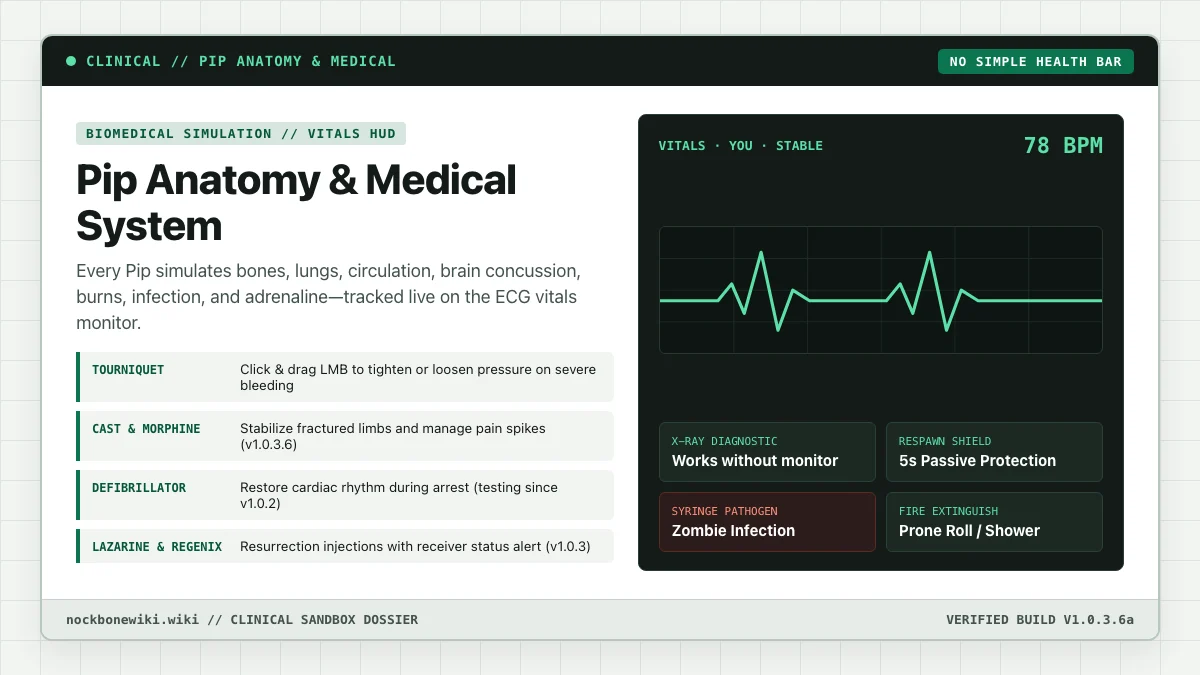
Nockbone Pip Anatomy & Medical Guide: Vitals, Casts & Meds
How Nockbone simulates Pip bones, blood, lungs, ECG vitals, X-ray, tourniquets, casts, morphine, Lazarine, and zombies.
Read more →